SeeDance 2.0 How to Use: Complete Tutorial & Prompt Guide
Learn how to use SeeDance 2.0 for AI video generation. Master text-to-video, image-to-video, and advanced prompts with real examples and tips.
What is SeeDance 2.0?
SeeDance 2.0 is ByteDance's latest AI video generation model that transforms your creative vision into stunning 20-second videos with 1080p resolution. Released in February 2025, this powerful tool represents a major leap forward in AI video technology, achieving an impressive 90%+ usable rate on first generation—compared to traditional AI video tools with only around 20% usable rates.
Understanding what is SeeDance 2.0 starts with recognizing its unique capabilities: native audio-video synchronization, multimodal input support, and realistic physics that make objects behave naturally. Whether you're creating marketing content, social media videos, or cinematic sequences, SeeDance 2.0 delivers professional results in roughly 60 seconds.
How SeeDance 2.0 Works
SeeDance 2.0 accepts multiple input types—text descriptions, images, videos, and audio files—giving you unprecedented creative control. The model understands physics, camera movements, and scene composition to generate smooth, believable animations. You can upload up to 12 files (9 images, 3 videos, and 3 audio clips) and reference them directly in your prompts using the @ reference system.
The technology behind SeeDance 2.0 enables multi-shot storytelling with consistent character appearances, natural lip-sync in multiple languages, and frame-by-frame audio synchronization. Video generation speed is 30% faster than SeeDance 1.0, while maintaining superior quality and motion realism.
Getting Started with SeeDance 2.0
Learning how to use SeeDance 2.0 begins with access. Currently, the model is available through Jimeng (Dreamina) at jimeng.jianying.com—you'll need a Douyin account to sign up. Alternatively, download the Little Skylark (Xiao Yunque) app for free trial access with zero point deduction.
Once you have access:
- Choose your input method: Text-only, image-to-video, or multi-modal with multiple references
- Upload your files: Add images, videos, or audio that you want to reference
- Write your prompt: Describe the motion, camera work, and style you envision
- Generate: The AI processes your request in about 60 seconds
- Download: Get your finished 1080p video ready to use
Ending the Reliance on "Magic Prompts"
One major pain point for first-generation AI video was black-box prompt engineering: Creators had to discover "magic prompts" and hacky phrasing to get usable results from models with weak semantic understanding and limited controls.
This is where both the all-round reference system and the multi-shot storyboarding come in very handy. The combination of being able to map assets to roles and a model that excels at understanding context across different shots of a scene yields impressive results without the need for "prompt-maxxing." It also avoids overloading the prompt (and overburdening the model).
One good example is the use of 3x3 image grids. Given 9 reference images representing different shots within a scene, you can get decent outputs, even if you put no effort into the prompt at all. Let's see what the model returned from a 3x3 grid as input, combined with a prompt as simple as it gets:
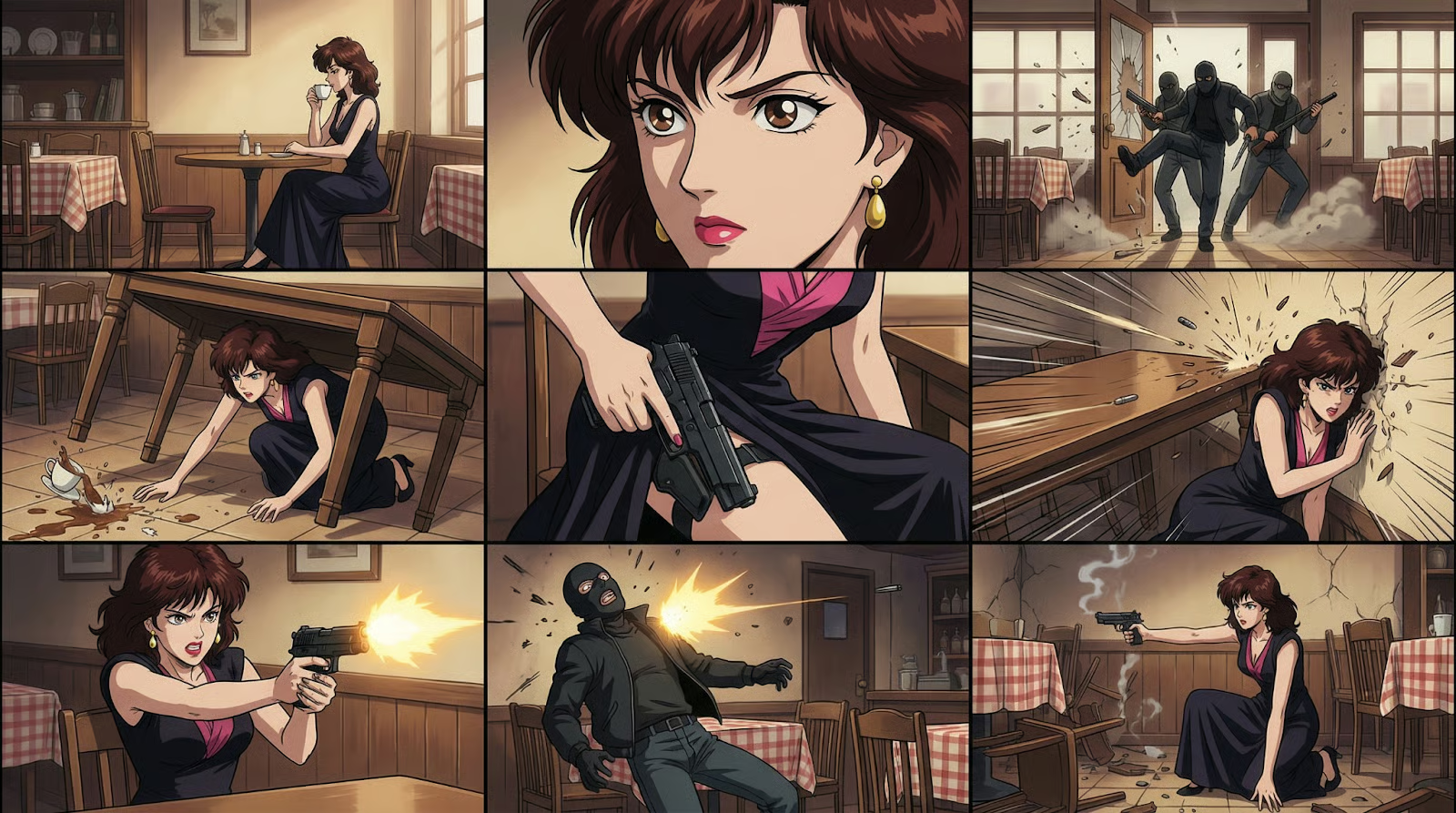
This example demonstrates how SeeDance 2.0 can take a simple grid of reference images and understand the entire scene context without requiring complex prompt engineering. The model automatically handles shot composition, camera angles, and action flow—delivering impressive results with minimal prompting effort.
Multi-Shot Storyboarding in Action
The multi-shot storyboarding feature puts SeeDance 2.0 in the role of both director and editor at the same time. Here's how it works:
- The model automatically breaks a single narrative into several connected shots
- For each shot, it selects the appropriate camera type
- Finally, it composes the shots and adds transitions between them
This is a good example of the storyboarding in action. The wide shot in the beginning, the zoom-in on Thanos, the tilt towards Thor, and the hard cut to Spiderman—all those look very coherent and in line with the Avengers feel, without the need to explicitly ask for any of those camera movements. SeeDance 2.0 automatically handles the cinematic storytelling, demonstrating its advanced understanding of narrative structure and visual composition.
Mastering SeeDance Prompts: The Director-Style Framework
Writing effective seedance prompts follows a proven structure that gives you maximum control over the output. The best SeeDance 2.0 prompts include these elements:
1. Subject
Describe what appears in the scene—characters, objects, environment. Be specific about appearance, clothing, and positioning.
2. Action
Define the motion—what moves, how it moves, and the sequence of events. Include details about speed and timing.
3. Camera
Specify camera behavior—static shots, pans, zooms, tracking movements. Mention angles like close-up, wide shot, or low-angle.
4. Scene & Lighting
Describe the environment, time of day, and lighting conditions. This affects mood and visual quality significantly.
5. Style & Mood
Define the aesthetic—cinematic, commercial, anime, realistic. Include mood descriptors like peaceful, dramatic, or energetic.
6. Constraints
Add technical requirements—maintain consistency, avoid distortion, high detail, specific resolution needs.
Using the @ Reference System
When you upload files to SeeDance 2.0, each receives a label like @Image1, @Video1, or @Audio1. Reference these in your prompt to create complex multi-modal compositions. For example: "Use the camera movement from @Video1 with the character style from @Image1" tells the AI to combine elements from different sources.
This system is particularly powerful for maintaining visual consistency across multiple shots or applying specific motion patterns to new subjects.
Tips for Best Results with SeeDance 2.0
Physics and Motion
SeeDance 2.0 excels at realistic physics—gravity works, fabrics drape correctly, fluids behave naturally. To maximize this strength, describe natural movements rather than abstract concepts. "Leaves gently fall from trees" works better than "add falling motion."
Consistency Matters
For character-focused videos, explicitly request consistency in your prompt: "Maintain face and clothing consistency throughout." This helps the AI preserve appearance across frames.
Duration Considerations
SeeDance 2.0 supports up to 20-second videos. Shorter durations (5-10 seconds) work better for subtle movements and tight shots, while longer sequences suit complex multi-shot narratives with scene transitions.
Prompt Length
More detailed prompts generally produce better results, but avoid contradictory instructions. If you specify "slow camera push" don't also ask for "quick zoom"—choose one clear direction.
Use Cases for SeeDance 2.0
The versatility of SeeDance 2.0 opens possibilities across industries:
Marketing & Advertising: Transform product photos into dynamic showcases, create eye-catching social media content, and produce commercial-quality footage without expensive shoots.
Content Creation: Generate B-roll footage for videos, bring historical photos to life for documentaries, create engaging educational content with animated diagrams.
Film & Entertainment: Prototype scenes before filming, generate concept videos for pitches, create animated sequences that blend with live action.
Social Media: Stand out on platforms with unique video content, turn static posts into engaging videos, create viral-worthy visual effects.
Conclusion
Learning how to use SeeDance 2.0 effectively opens a new dimension in video creation. With its 90%+ first-generation success rate, multimodal capabilities, and realistic motion physics, SeeDance 2.0 democratizes professional video production. The key lies in mastering seedance prompt structure—combining clear subject descriptions, precise action details, and specific camera instructions.
Start with simple text-to-video experiments, then progress to image-to-video projects as you understand the model's capabilities. The @ reference system unlocks advanced multi-modal workflows when you're ready to push creative boundaries.
Ready to create your first SeeDance 2.0 video? Access the platform through Jimeng or Little Skylark app and start experimenting with the prompt techniques you've learned here. The future of AI video generation is here—and it's more accessible than ever.
Want to explore more AI video tools? Check out our video generator to bring your creative visions to life with cutting-edge technology.